One of the best features of a MWRCTV POE security camera system is remote access—being able to view your camera footage from your phone, no matter where you are. Whether you’re at work, on vacation, or just out running errands, you can check in on your home, receive motion alerts, and even playback footage—all from your smartphone. Many beginners think setting up remote access is complicated, but it’s actually simple—even if you’re not tech-savvy. This step-by-step guide will walk you through how to connect your MWRCTV POE camera system to your phone, using our easy-to-use APP. We’ll cover both iOS and Android devices, so no matter what phone you have, you can get set up in minutes.
What You’ll Need Before You Start
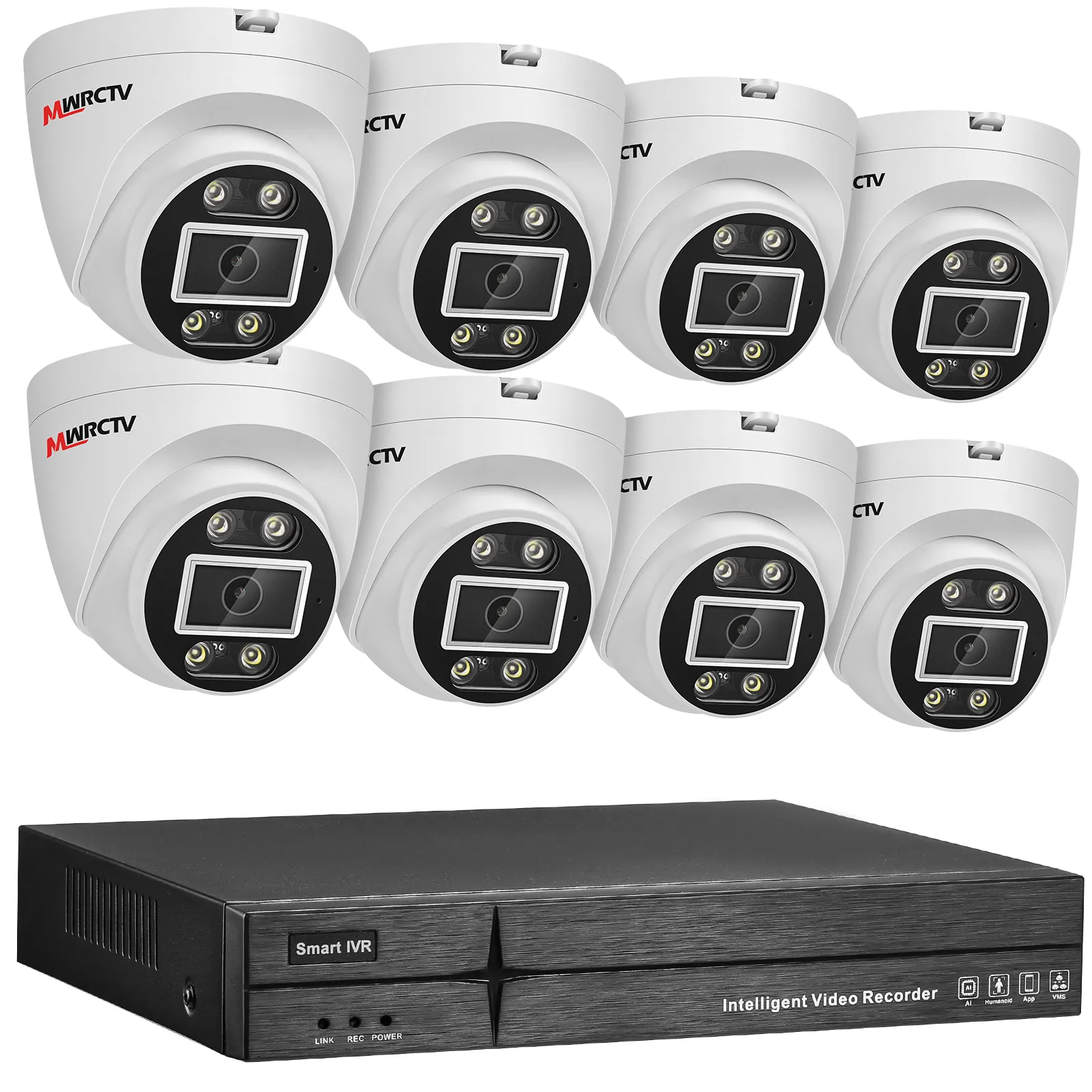
Before setting up remote access, make sure you have these things ready—they’re all included with your MWRCTV POE kit or easy to access: •MWRCTV POE camera system (cameras + NVR with built-in POE ports) •Smartphone (iOS or Android) •Home Wi-Fi network (stable, with a strong signal—this ensures smooth remote viewing) •LinkEasy APP (available for free on the App Store and Google Play—search “LinkEasy” to download) •NVR connected to a monitor (to access the NVR settings—you only need this for the initial setup)
Step 1: Connect Your MWRCTV NVR to Router
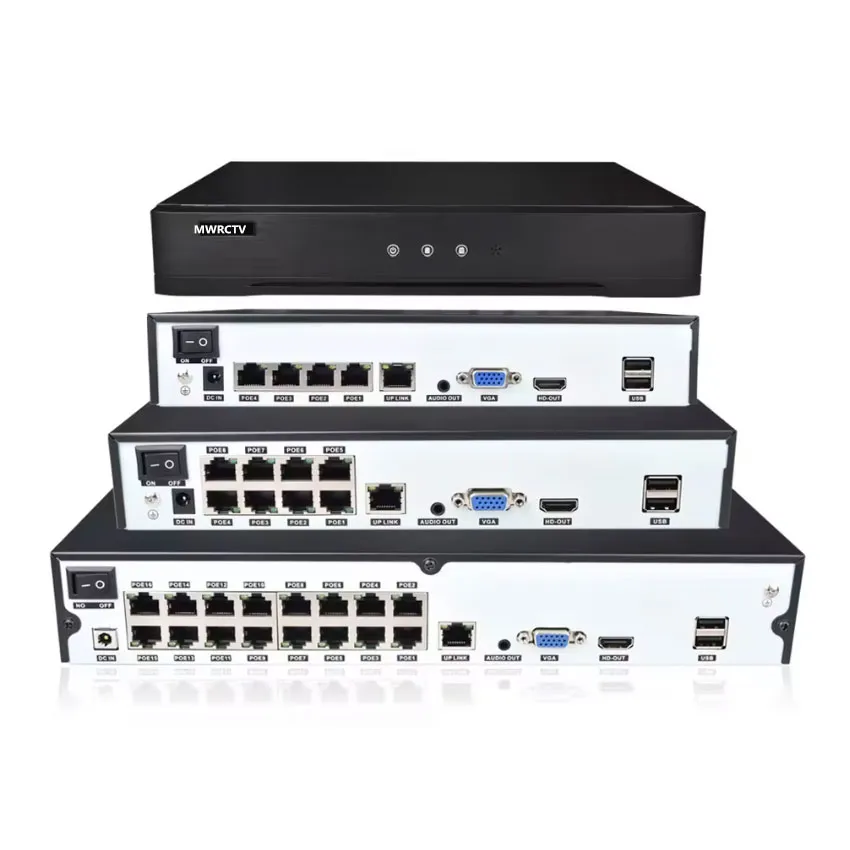
Connect the NVR to a monitor or TV using an HDMI cable
Connect a mouse, and connect the NVR to a router or switch (do not connect it to a modem)
Plug in the NVR’s power adapter and turn on the power switch.
The NVR will now enter the startup screen. Wait for it to boot to the live view/main interface.
If you have correctly connected the NVR to a router or switch, the current status should now show: NVR Active State: Activated Connection Status: Online
Step 2: Download & Install the LinkEasy APP
Next, download the LinkEasy APP to your smartphone—this is the app you’ll use to view your camera footage remotely:
•For iOS users: Open the App Store, search for “LinkEasy”, and tap “Get” to download and install the app.
•For Android users: Open the Google Play Store, search for “LinkEasy”, and tap “Install”.
Once the app is installed, open it and create an account. Creating an account is free—just enter your email address and create a password.
Step 3: Add Your MWRCTV NVR to the APP
Now it’s time to connect your MWRCTV POE system to the app—this is the key step to enable remote access.
Scan the QR Code (Fastest & Easiest)
On your NVR monitor, navigate to the the Top right corner, mobile phone icon—you’ll find a QR code displayed on the screen (this is unique to your MWRCTV NVR).
Open the LinkEasy APP on your phone, log in to your account, and tap the “+” icon (usually in the top right corner) to add a new device.
Select “Scan QR Code” and point your phone’s camera at the QR code on the NVR monitor.
The app will automatically detect your MWRCTV POE system—tap “Add” to confirm.
Step 4: View Your Camera Footage on Your Phone
Once you’ve added your MWRCTV POE system to the app, you can start viewing your footage remotely—here’s how:
Open the MWRCTV APP and log in to your account.
You’ll see your MWRCTV POE system listed on the app’s home screen—tap on it to view all your cameras.
To view playback footage: Tap the “Playback” icon (usually a clock or calendar icon) and select the date and time you want to view—this is perfect for checking what happened while you were away.
Step 5: Set Up Motion Alerts (Optional but Recommended)
To get notified when your MWRCTV POE cameras detect movement (e.g., someone at your door), set up motion alerts in the app:
①Access the NVR menu, navigate to Configuration > Alarm Management > Ordinary Events. Assuming you wish to activate Channel 1 app notifications, select Channel 1 then choose Enable,then remember to Click Save.
②You need to enable notifications for the app in your phone’s settings.
③Enable the Alarm Push function in the APP settings.
Navigate to Setting–Push alarms
Enable alarm push for Video Detection and Regional Intrusion.
If you need to turn off push notifications, simply reverse the operation in the app.
Troubleshooting Remote Access Issues
If you can’t view your footage remotely, here are the most common issues and how to fix them:
APP can’t find the NVR: Check whether the NVR is connected to the network.
Footage is lagging: This is related to your network. Please check your network.
Push notifications not working: Make sure the MWRCTV APP has permission to send notifications (check your phone’s settings).
Final Thoughts
Setting up remote access for your MWRCTV POE camera system is quick and easy—with this guide, you can be viewing your footage on your phone in 10-15 minutes. Remote access is one of the biggest benefits of a POE security system, giving you peace of mind no matter where you are.
Our MWRCTV APP is designed to be beginner-friendly, with a simple interface that makes it easy to view live footage, playback clips, and set up motion alerts. And if you run into any issues, our 24/7 customer support team is here to help.
Ready to set up remote access for your MWRCTV POE camera system? Download the LinkEasy APP today, and enjoy the convenience of monitoring your home from anywhere.



How to Connect MWRCTV POE Camera System to Phone (Remote Access Guide)
One of the best features of a MWRCTV POE security camera system is remote access—being able to view your camera footage from your phone, no matter where you are. Whether you’re at work, on vacation, or just out running errands, you can check in on your home, receive motion alerts, and even playback footage—all from your smartphone.
Many beginners think setting up remote access is complicated, but it’s actually simple—even if you’re not tech-savvy. This step-by-step guide will walk you through how to connect your MWRCTV POE camera system to your phone, using our easy-to-use APP. We’ll cover both iOS and Android devices, so no matter what phone you have, you can get set up in minutes.
What You’ll Need Before You Start
Before setting up remote access, make sure you have these things ready—they’re all included with your MWRCTV POE kit or easy to access:
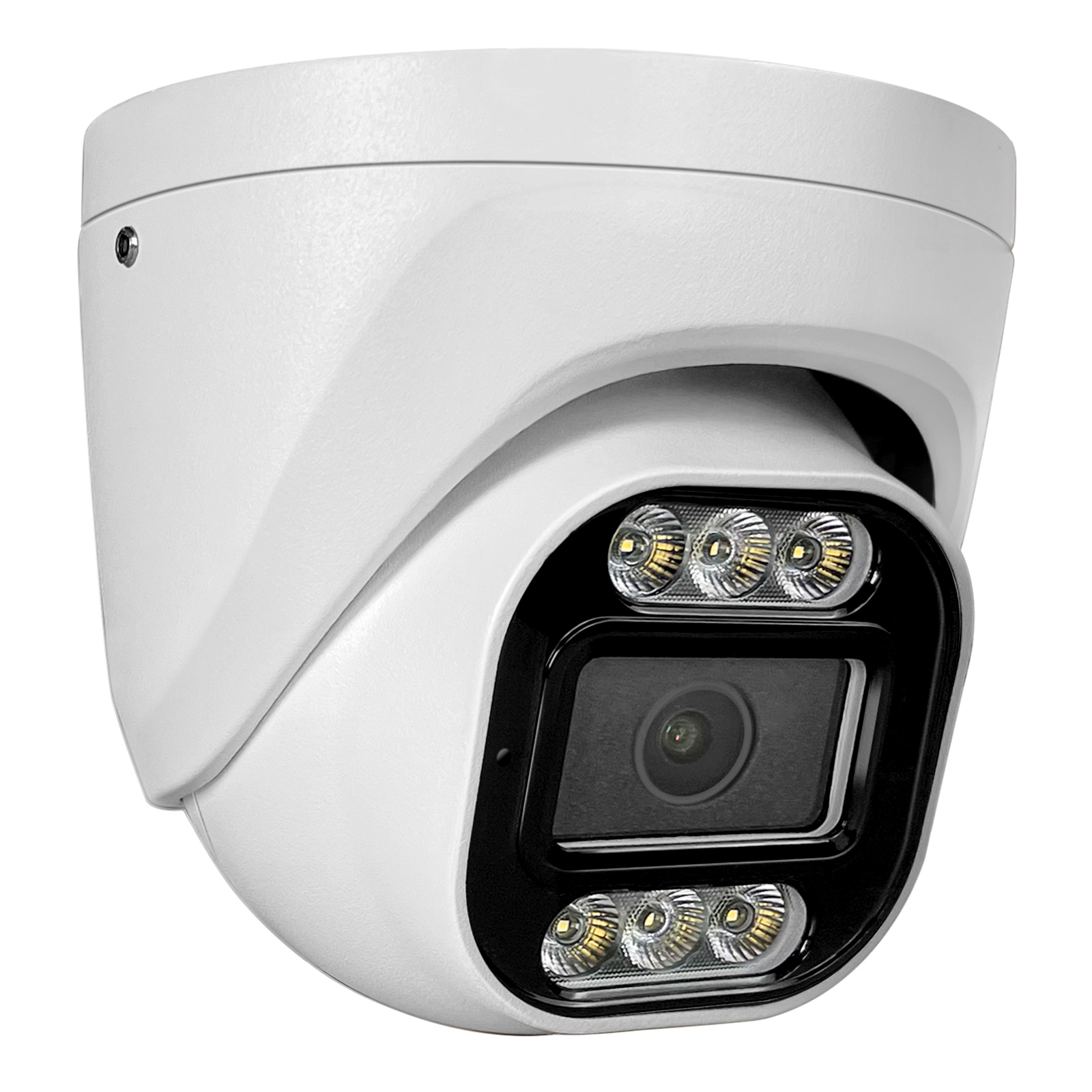
•MWRCTV POE camera system (cameras + NVR with built-in POE ports)
•Smartphone (iOS or Android)
•Home Wi-Fi network (stable, with a strong signal—this ensures smooth remote viewing)
•LinkEasy APP (available for free on the App Store and Google Play—search “LinkEasy” to download)
•NVR connected to a monitor (to access the NVR settings—you only need this for the initial setup)
Step 1: Connect Your MWRCTV NVR to Router
Step 2: Download & Install the LinkEasy APP
Next, download the LinkEasy APP to your smartphone—this is the app you’ll use to view your camera footage remotely:
•For iOS users: Open the App Store, search for “LinkEasy”, and tap “Get” to download and install the app.
•For Android users: Open the Google Play Store, search for “LinkEasy”, and tap “Install”.
Once the app is installed, open it and create an account. Creating an account is free—just enter your email address and create a password.
Step 3: Add Your MWRCTV NVR to the APP
Now it’s time to connect your MWRCTV POE system to the app—this is the key step to enable remote access.
Scan the QR Code (Fastest & Easiest)
Step 4: View Your Camera Footage on Your Phone
Once you’ve added your MWRCTV POE system to the app, you can start viewing your footage remotely—here’s how:
Step 5: Set Up Motion Alerts (Optional but Recommended)
To get notified when your MWRCTV POE cameras detect movement (e.g., someone at your door), set up motion alerts in the app:
①Access the NVR menu, navigate to Configuration > Alarm Management > Ordinary Events. Assuming you wish to activate Channel 1 app notifications, select Channel 1 then choose Enable,then remember to Click Save.
②You need to enable notifications for the app in your phone’s settings.
③Enable the Alarm Push function in the APP settings.
Navigate to Setting–Push alarms
Enable alarm push for Video Detection and Regional Intrusion.
If you need to turn off push notifications, simply reverse the operation in the app.
Troubleshooting Remote Access Issues
If you can’t view your footage remotely, here are the most common issues and how to fix them:
Final Thoughts
Setting up remote access for your MWRCTV POE camera system is quick and easy—with this guide, you can be viewing your footage on your phone in 10-15 minutes. Remote access is one of the biggest benefits of a POE security system, giving you peace of mind no matter where you are.
Our MWRCTV APP is designed to be beginner-friendly, with a simple interface that makes it easy to view live footage, playback clips, and set up motion alerts. And if you run into any issues, our 24/7 customer support team is here to help.
Ready to set up remote access for your MWRCTV POE camera system? Download the LinkEasy APP today, and enjoy the convenience of monitoring your home from anywhere.